

 
|

|
Charges
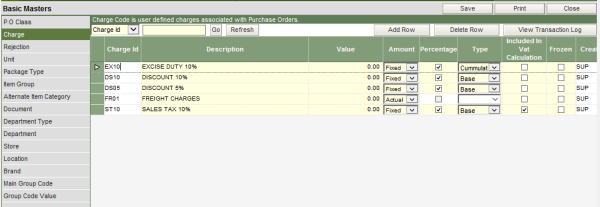
All charges, for example, sales tax, discounts, excise duty, freight charges, VAT etc. being applied at the time of raising a purchase order, needs to be configured in the system. The Charge master allows doing so.
To define the charges
I. Type in the unique id for the charge being defined. This is a 4 character alphanumeric code.
II. Type in the description of the charge id.
III. Enter the value that will be applied when the charge is being used in the Purchase Order.
IV. The value defined in the previous step, can be a Fixed or an Actual amount.
a) Fixed Amount: The value of the charges, either percentage or numeric, when known before or at the time of generating a purchase order is termed as fixed amount. The value of such charges does not change with each item/vendor or purchase order.
b) Actual Amount: The value of the charges, either percentage or numeric, when not known before or at the time of generating a purchase order is termed as actual amount. For example Freight Charges. The value of such charges is known and can be applied only at the time receiving the items of the Purchase Order.
V. Tick the column of Percentage, if the value defined is a percentage value.
VI. Select the type of the charge, which can be either Base or Cumulative.
a) Base Type: The value of the charge when applied on the base amount of the item or the purchase order is known as type – base. For example, the charge ST10 –Sales tax 10% (as can be seen in the picture), is of type Base. Therefore, if an item has a price of 100.00/- and also has a sales tax of 10% on it, then the system will apply the 10% on 100.00/-.
b) Cumulative Type: The value of the charge when applied on the base amount + the amount of any other taxes/charges, is known as type – cumulative. For example, the charge EX10 – excise Duty 10% (as can be seen in the picture) is of type cumulative. Therefore, if an item has a price of 100 and has both sales tax 10% and an excise duty of 10%, then the system will calculate and apply 10% excise duty on 110.00/- (100 + 10% sales tax)
VII. Tick the column of Included in VAT calculation, if the charge amount defined needs to be included with the item amount, while calculating VAT. VAT as such is always calculated on the base value of an item, but in some cases, VAT may be calculated on the amount after considering any charge/tax value applicable on the item. In such cases, this check box of the column should be ticked.

