


|

|
Overview of Inventory Parameters
Inventory module of WebProl’IFIC is robust and structured. It primarily deals with purchasing and receiving goods in the hotel. The module helps in maintaining optimal level of items, significantly improve inventory turns and optimize the flow of goods. Shelf Life controls and automated alerts ensure that expired lots are not selected for distribution.
The inventory module enables the management in improving cash flow, visibility and smarter decision making for the hotel.
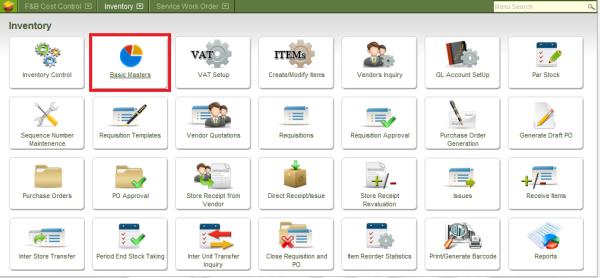
The inventory module of WebProl’IFIC is packaged software designed for use by multiple users with different business needs. It has a list of masters, called the BASIC MASTERS, through which key parameters can be configured, as appropriate for the specific hotel. To access the BASIC MASTERS Screen.
In the INVENTORY module, click the icon of BASIC MASTERS in the menu
The following screen is loaded:
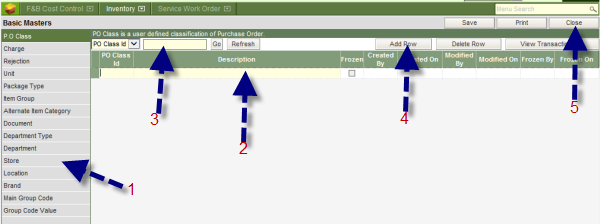
1. All the masters that need to be defined, some of which are optional, are listed on the left of the screen. To define each master, select the master by clicking on the same in the list.
2. The content of the master is entered in this section of the screen. The section looks like a spreadsheet. The columns and the column headings are painted based on the selected master from the list.
3. This is the search section, from which a specific record of each master can be searched.
4. To use this function,
a. Select the field from the drop down list, in which the content is to be searched for. The field list is nothing but the column headings of the selected master.
b. Enter the text that is being searched, next to the field name.
c. Click the GO button.
d. The Refresh button is used to clear the search option for a new search
5. The Add Row button is used to insert a blank row in the spreadsheet, in which the master data has to be entered. To delete a row, the Delete Row button can be used.
6. Once the contents of a master are entered in the spreadsheet, click the Save button to save the data into the database. The master can be printed by clicking the Print button. To close the Basic Masters Screen, click the Close button.

